
How to Use the PDF Tool App with Jira Automations
The PDF Tool integrates seamlessly with Jira’s automation engine. You can configure Jira Automation rules to respond when a pdf is exported, by triggering webhooks and performing actions like adding a comment, sending a notification, or updating an issue.
Here’s a step-by-step guide to set this up using an example where a comment is added to a Jira issue when a pdf is exported.
Step 1: Access Global Automations
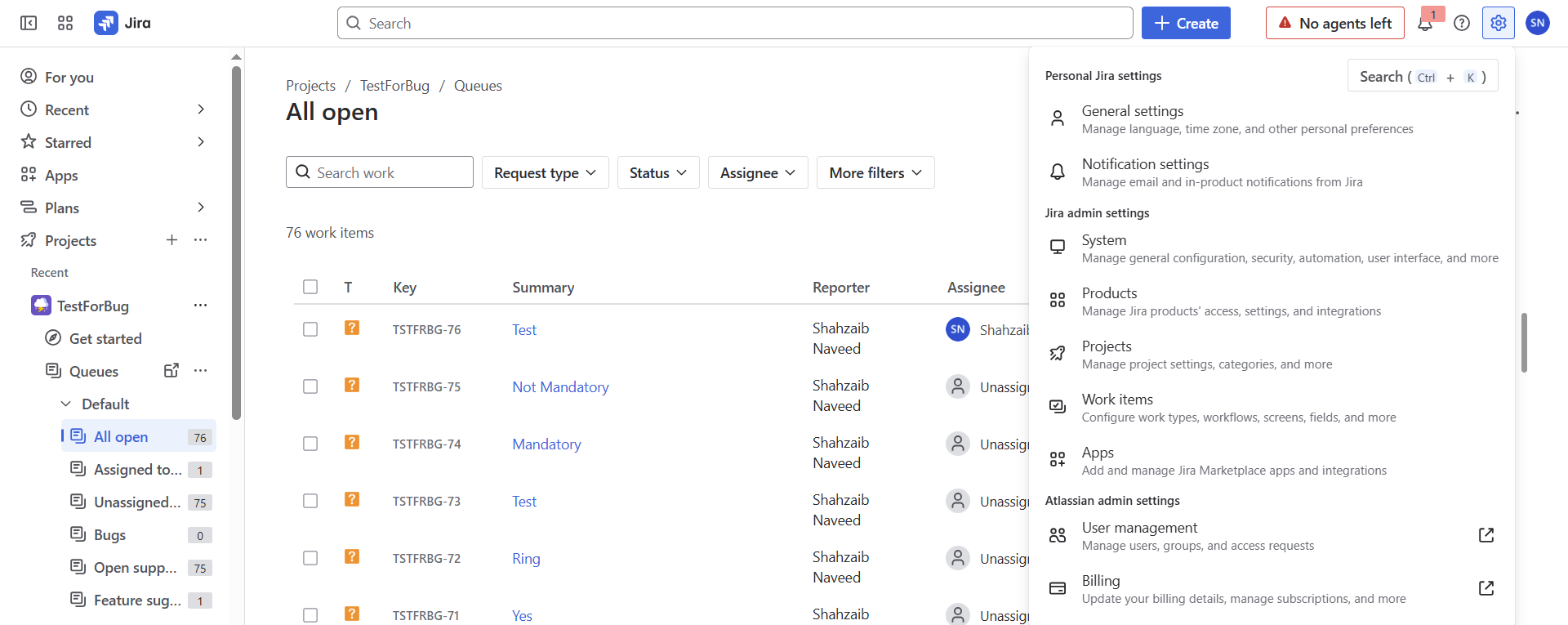
In Jira, click the Settings (configuration icon) on the top-right, next to your user avatar.
From the dropdown, select System.
In the left-hand sidebar, scroll down and click on Global automation under Automation.
Step 2: Create a New Automation Rule
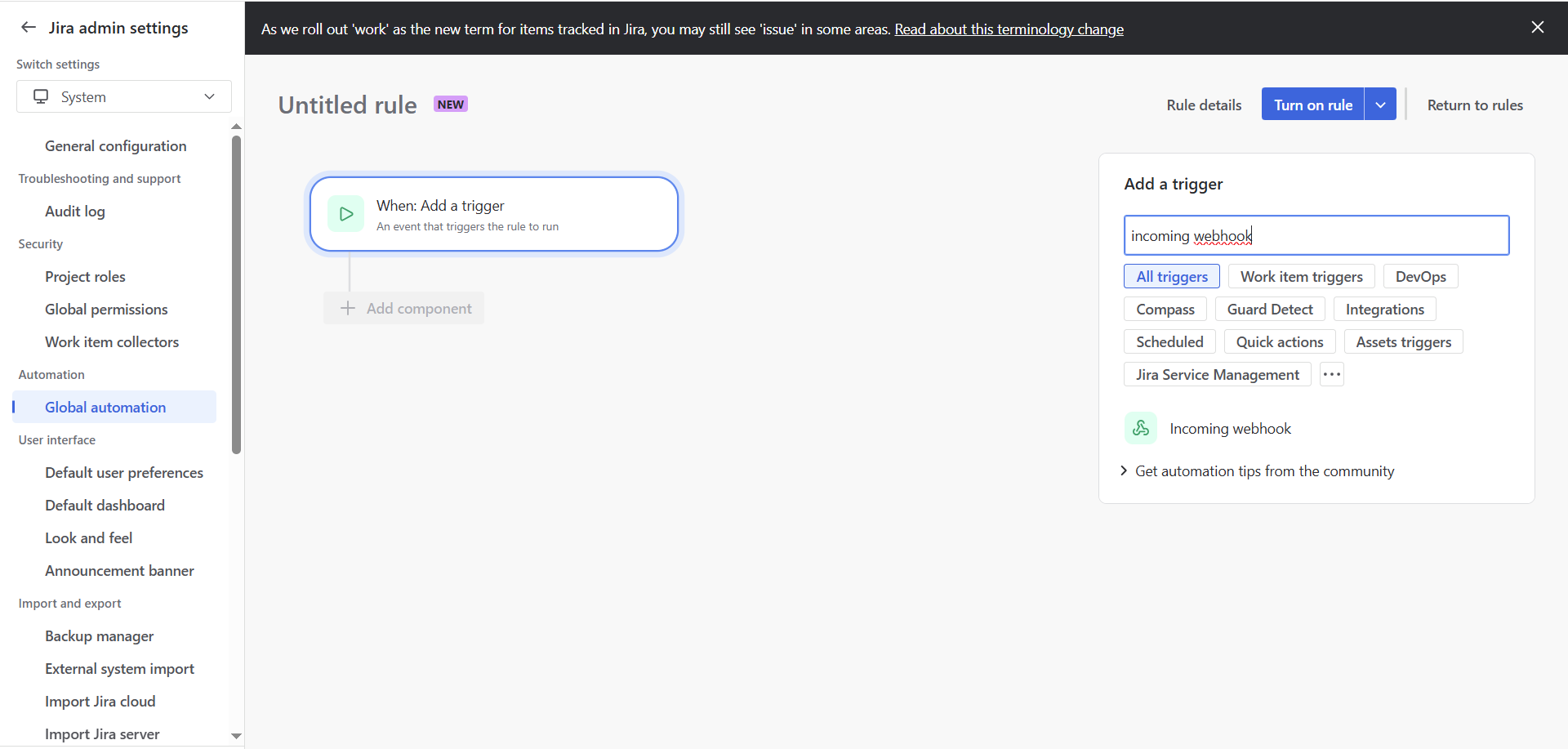
Click Create rule.
Under Add a trigger, select Incoming webhook.
A Webhook URL will be generated here. You’ll need this later.
Jira will also display an optional Secret for additional security.
Step 3: Add an Action to Your Automation
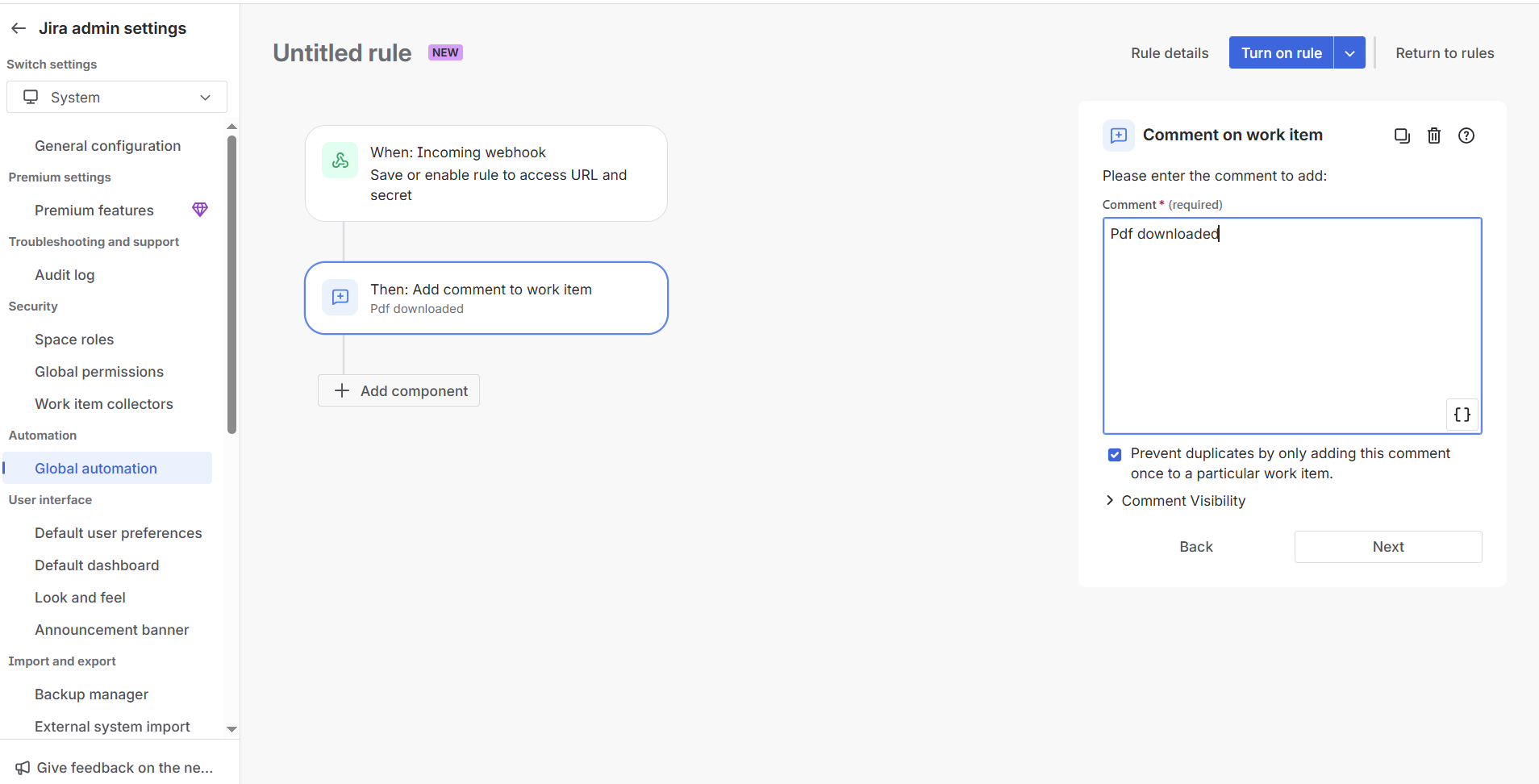
After adding the Incoming webhook trigger, click New action.
Select Comment on issue from the list of actions.
In the comment field, enter a message like:
Pdf downloaded.Click Next.
Step 4: Name and Turn On the Rule
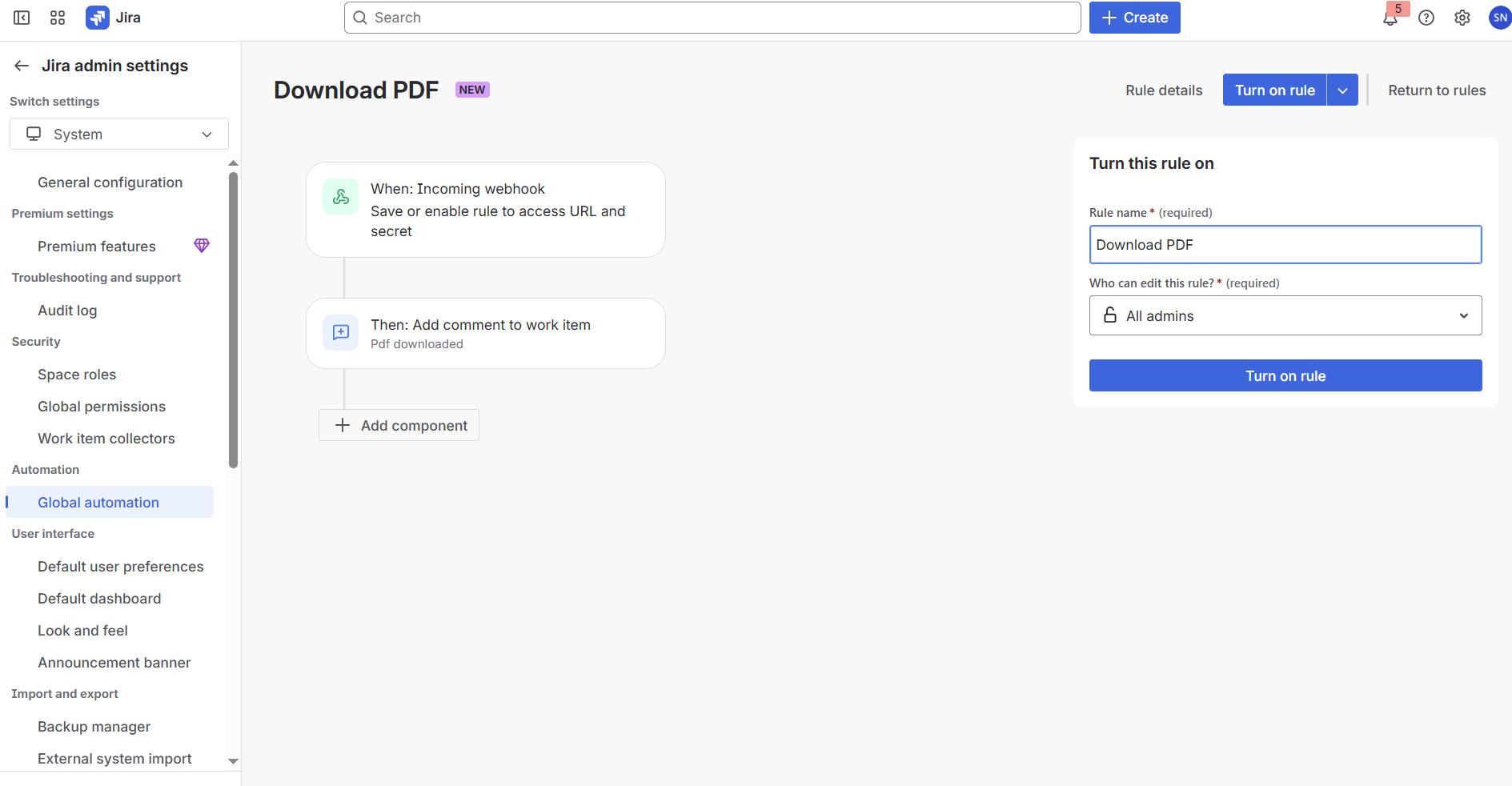
Give your rule a clear name like
Download PDF.Turn the rule on.
Step 5: Configure the Webhook URL and Secret in PDF Tool
Go to your Jira project.
In the left-hand sidebar, click on Project settings.
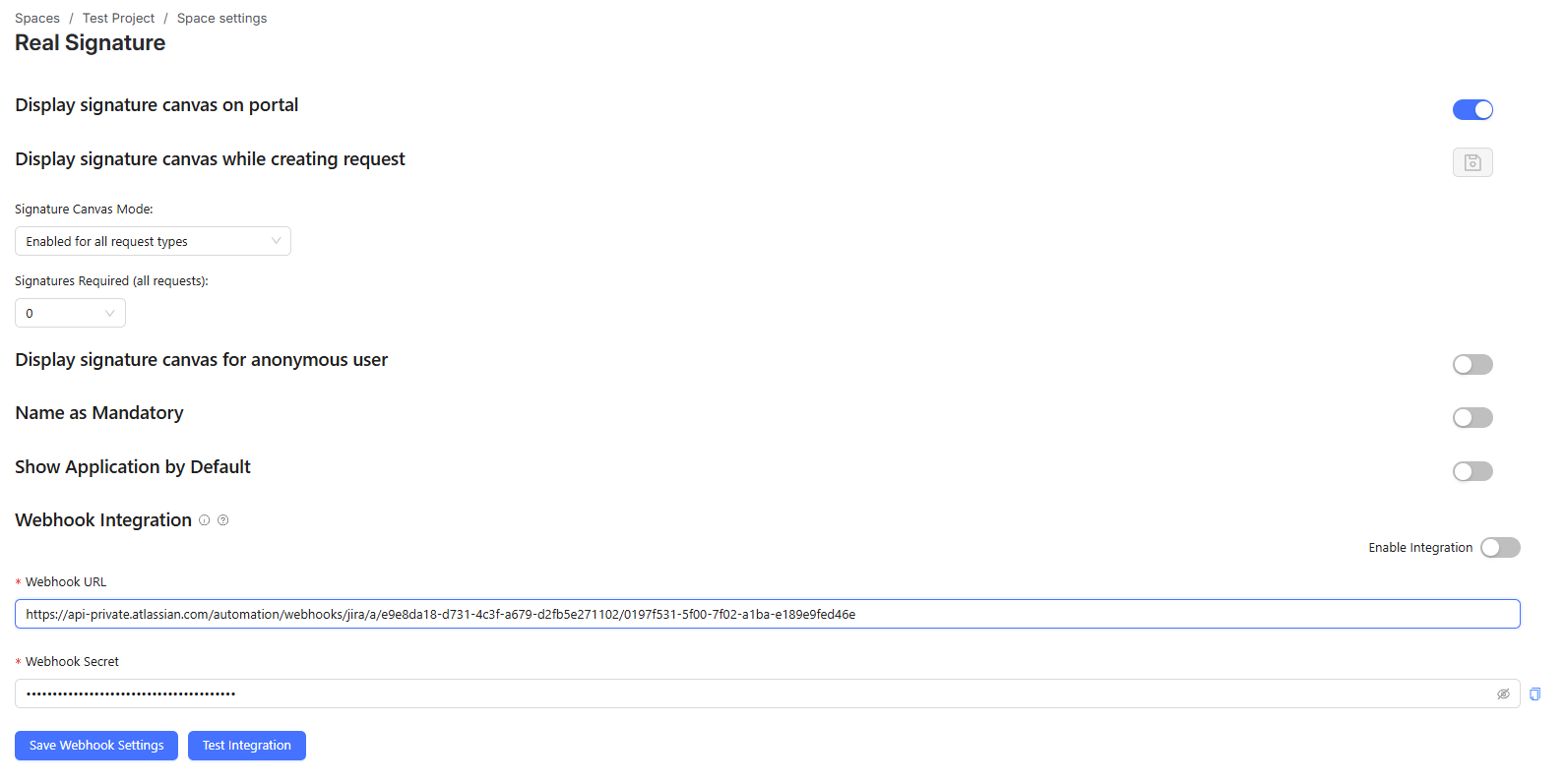
Under Apps, select PDF Export.
In the Space settings:
Paste the Webhook URL you copied earlier into the Webhook URL field.
Enter the Secret into the corresponding Secret Key field.
Save the configuration.
How It Works:
When a pdf is exported for an issue, the PDF Tool will automatically trigger this webhook.
Jira will receive the webhook call, and the automation rule will execute.
The rule will then add the predefined comment to the relevant issue.
Example Use Case Summary:
Step | Action |
|---|---|
Create automation rule | Use Webhook as trigger, Comment on issue as action |
Retrieve Webhook URL & Secret | Copy them from the rule configuration page |
Configure PDF Tool | Enter the Webhook URL and Secret into Webhook URL and Secret Key fields in project settings |
Result | A comment is added to the issue automatically when a pdf is exported. |
Note:
This is one example of how to use Jira Automations with PDF Tool. You can extend this by adding additional actions such as:
Sending an email notification
Changing issue status
Triggering external integrations
Just by chaining more actions to your automation rule.