
Project Settings
Overview
The Project Settings section allows administrators to configure how the PDF Export feature behaves within the Jira issue export application.
The settings are divided into two tabs:
PDF Export – Controls the content and appearance of the exported PDF.
Integrations – Manages webhook and third-party integrations for automated or external PDF generation.
These settings define the logo, footer details, selectable custom fields, field visibility, and integration options.
🧾 Tab 1: PDF Export
🖼️ 1. Logo Settings
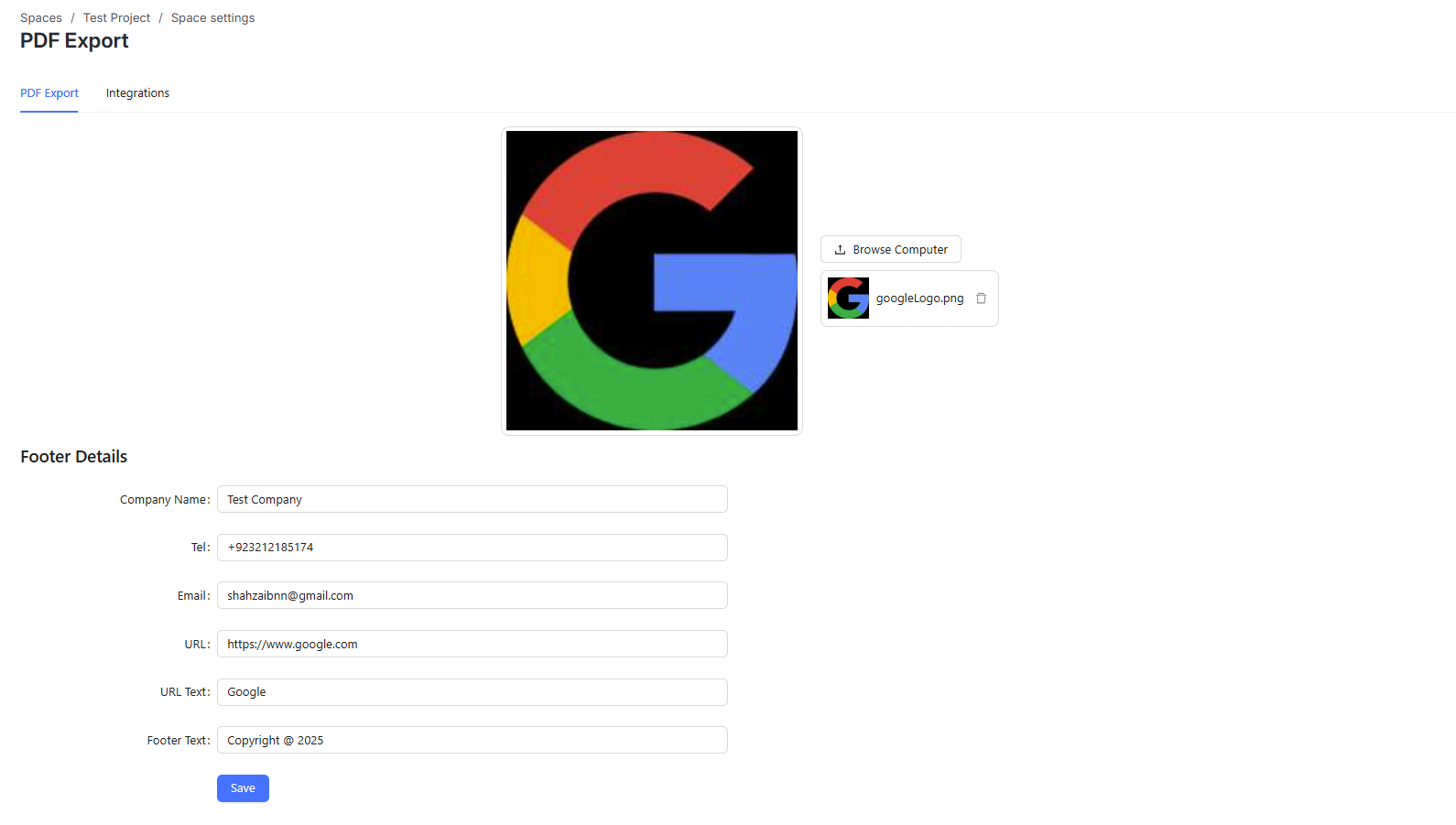
The Logo Settings section allows you to upload or update the company logo that appears in the header of every exported PDF.
Configuration Options:
Logo – Upload the company logo to be displayed at the top of the exported PDF.
The uploaded logo will automatically appear in the PDF header alongside issue information such as the issue title, dates, and created-by details.
🖋️ 2. Footer Settings
The Footer Settings section is used to configure the information that appears at the bottom of each exported PDF.
Footer Details:
Company Name – The company name to display in the footer
Tel – Company contact phone number
Email – Official contact email address
URL – Website or external link
URL Text – Display label for the URL
Footer Text – A short note such as a copyright or disclaimer message
🧾 3. Add Custom Fields for PDF Export
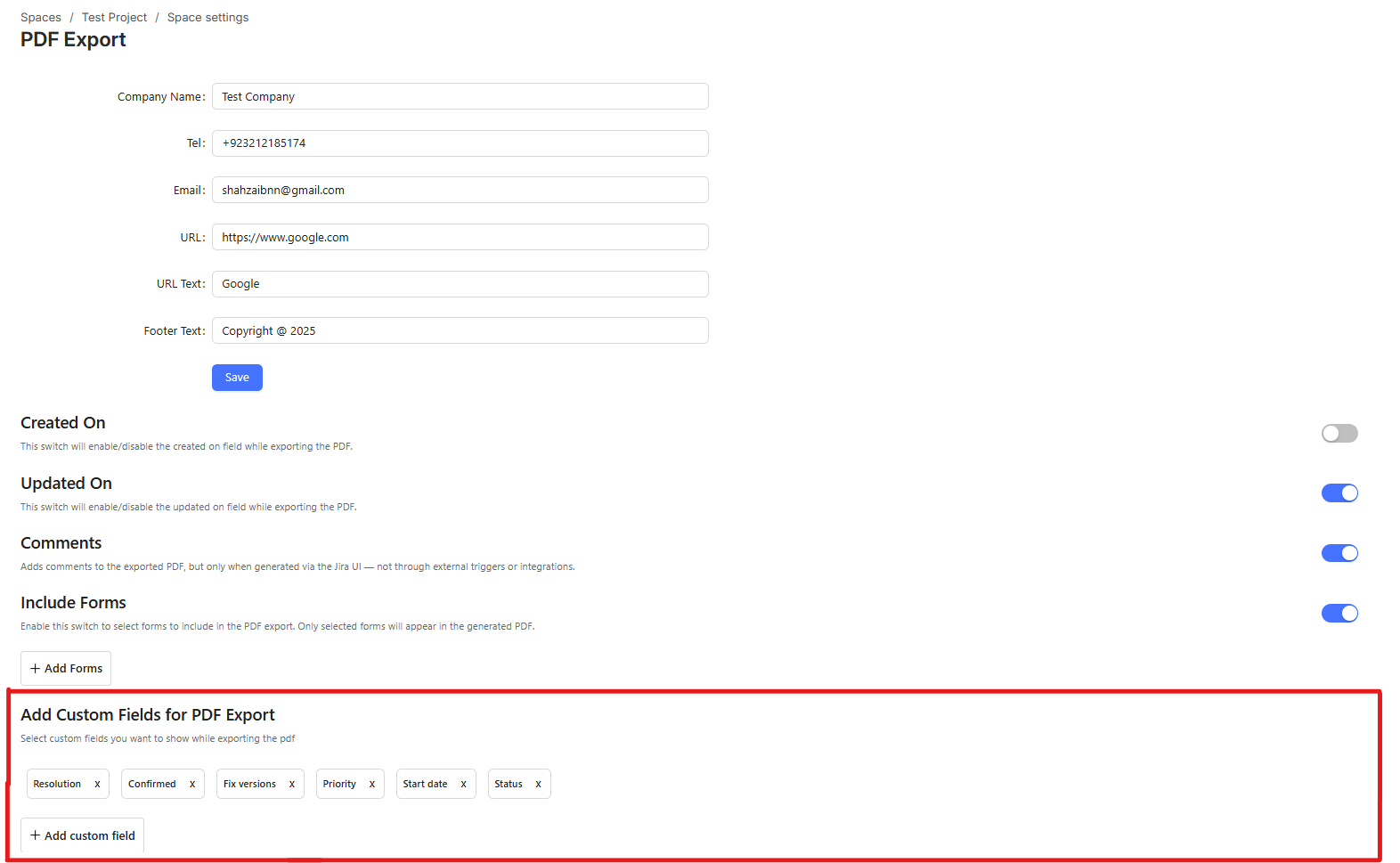
This section allows you to choose which Jira fields should appear in the exported PDF.
Configuration Steps:
Open the Add Custom Fields section in Project Settings
Select one or more custom fields from the dropdown list
Click Add Custom Field
The selected fields will automatically appear in all future exported PDFs.
🕒 4. Field Display & Content Settings
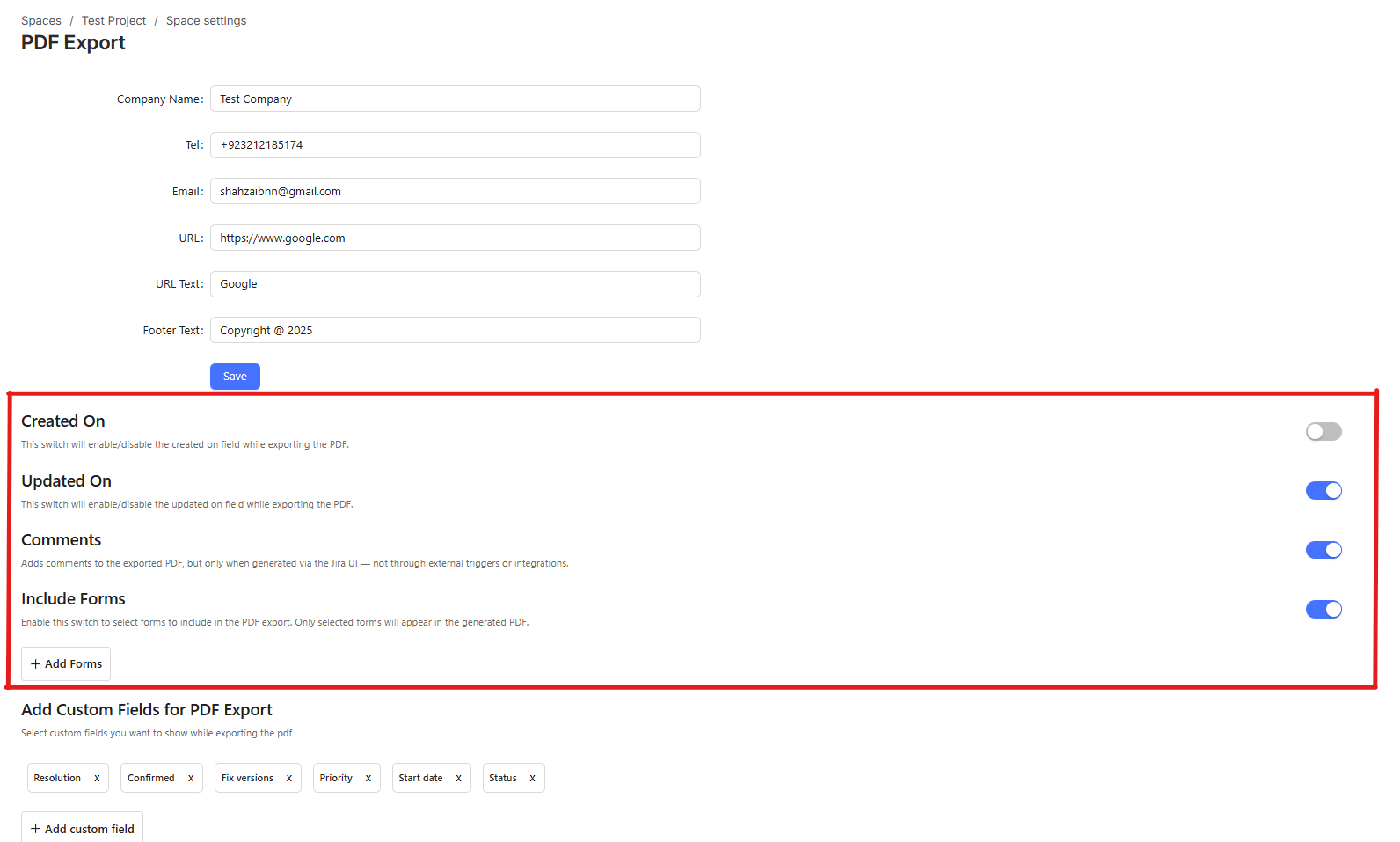
This section allows you to control which standard Jira fields and additional content appear in the exported PDF.
Available Switches:
Created On – Enable or disable the inclusion of the Created On field
Updated On – Enable or disable the inclusion of the Updated On field
Comments – Enable or disable the inclusion of issue comments
Note: Comments are only exported when the PDF is generated through the Jira UI, not via web triggers, automations or third-party integrations.
Include Forms – Enable or disable the inclusion of Jira forms
When enabled, any forms attached to the issue will be included in the exported PDF.
🔄 Tab 2: Integrations
🔗 5. Webhook Integrations
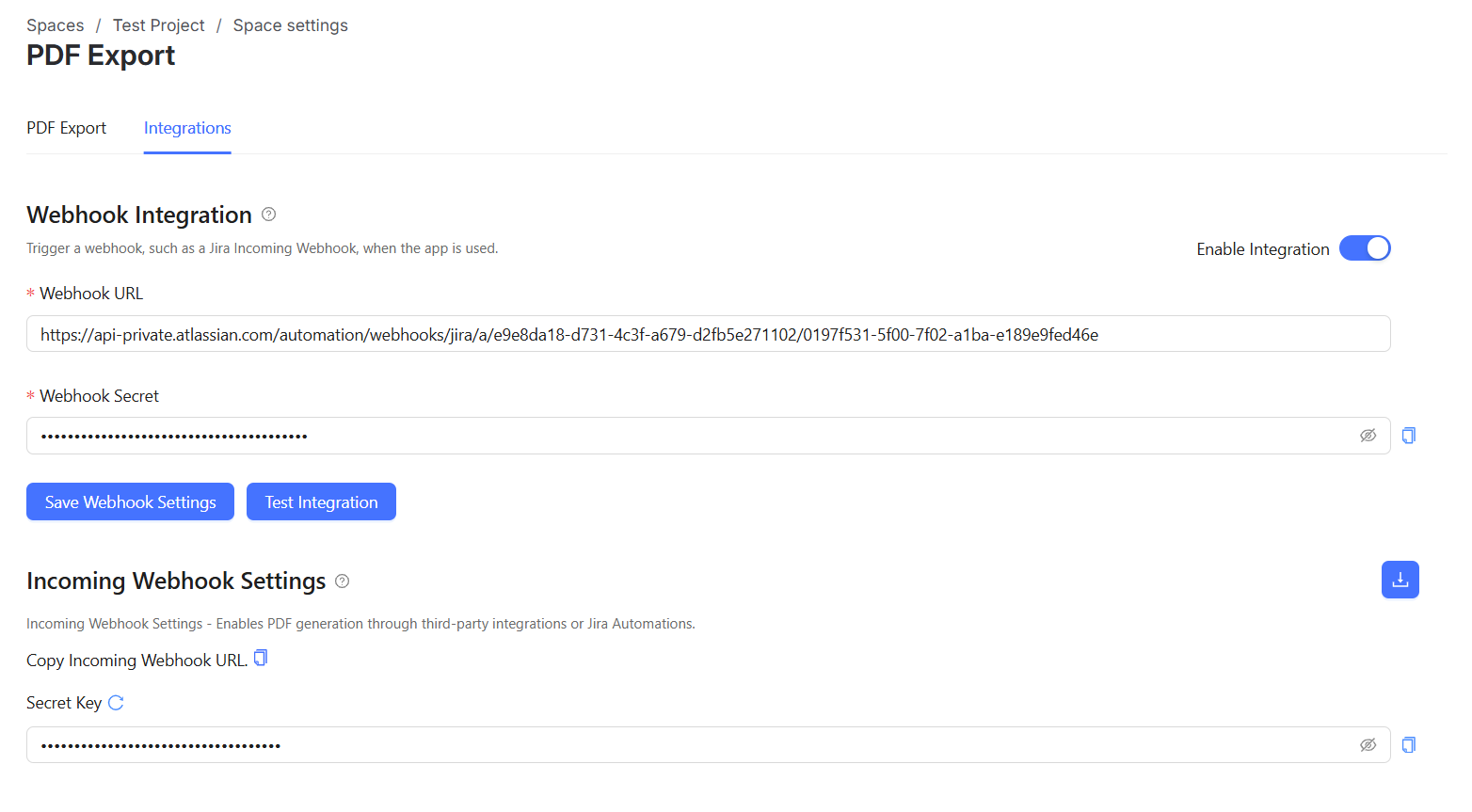
Webhook Integrations allow automatic PDF exports to be triggered when certain Jira events occur or when requests are received from other systems.
Configuration Options:
Enable Integration – Enable or disable automatic PDF export via webhooks
Webhook URL – The endpoint that receives webhook requests
Webhook Secret – A secret key used to authenticate incoming webhook requests
🔐 Note: Keep your webhook secret secure to prevent unauthorized triggers.
🌐 6. Incoming Webhook Settings (for Third Parties)
This section allows third-party systems or external tools to manually trigger PDF generation through an API call.
Configuration Options:
Web Trigger URL – The endpoint used by external systems to initiate PDF generation
Secret Key – A unique authentication key used to validate the external request
✅ Summary
Project Settings are divided into PDF Export and Integrations tabs
Upload and manage the logo displayed in PDF headers
Configure footer details for all exported PDFs
Add and manage custom Jira fields included in PDF exports
Control visibility of issue fields, comments, and attached forms
Enable automatic or external PDF generation using webhooks and web triggers